How to Get 10x the Benefits of Google Alerts
Google Alerts is free, it's familiar, and almost everyone who does any kind of monitoring has set one up at some point. But there's a gap between what it promises and what it actually delivers.
Here's how to close that gap without abandoning Google Alerts entirely with RSS.app.
What's actually wrong with Google Alerts?
Nothing, if passive awareness is the goal. You type a keyword, Google monitors the web, and you get an email when something matches. Simple.
The problem is that serious monitoring (tracking a competitor, a market shift, a regulatory topic, a brand) requires more than awareness. It requires signal over noise, speed over delay, and the ability to act on what you find. Google Alerts wasn't built for any of that.
A few things it gets wrong:
- Timing. Alerts are batched and delivered on Google's schedule, not yours. New results arrive in batches, which means you're reacting to a digest rather than following a continuously updating stream.
- Format. The email digest is optimized for reading in your inbox, not for building workflows. Once a result lands there, there's little you can do with it besides click through.
- Control. Google Alerts has basic settings for frequency, sources, language, region, and result volume. But it does not give you workflow-level filtering. You cannot easily remove specific publishers, exclude recurring noise, reshape results, or route different types of mentions to different places.
- Scale. Most people don't have one alert. They have five or ten, and each one is a separate email thread. Managing them is work.
None of this is Google's fault. Alerts was designed as a lightweight notification tool, not a monitoring infrastructure. The issue is using it as one.
Why RSS changes the equation
Google Alerts supports RSS output, but it's not the default. When you switch an alert from email delivery to RSS, something shifts. Instead of receiving a list of links in your inbox, you get a feed that other tools can consume (Not familiar with RSS? See our guide What Is RSS?.). That opens the door to filtering, automation, summaries, and custom delivery.
That's the starting point. What RSS.app does is take that feed and build a proper monitoring layer on top of it.
How do you turn a Google Alert into an RSS feed?
It takes about thirty seconds.
- Open any existing Google Alert.
- Click Edit and find the Deliver to dropdown.
- Switch it from your email address to RSS Feed.
- Hit Update.
An RSS icon will appear next to the alert. Click it and copy the URL.
That URL is a live feed. Every time Google picks up a new result for your keyword, it appears there.
What does RSS.app add that Google Alerts doesn't have?
Paste that URL into RSS.app's RSS Generator and hit Generate. The feed loads immediately in two views: Native (Google's raw output) and the RSS.app version, which reformats everything into a visual feed with images, source names, and structured metadata.
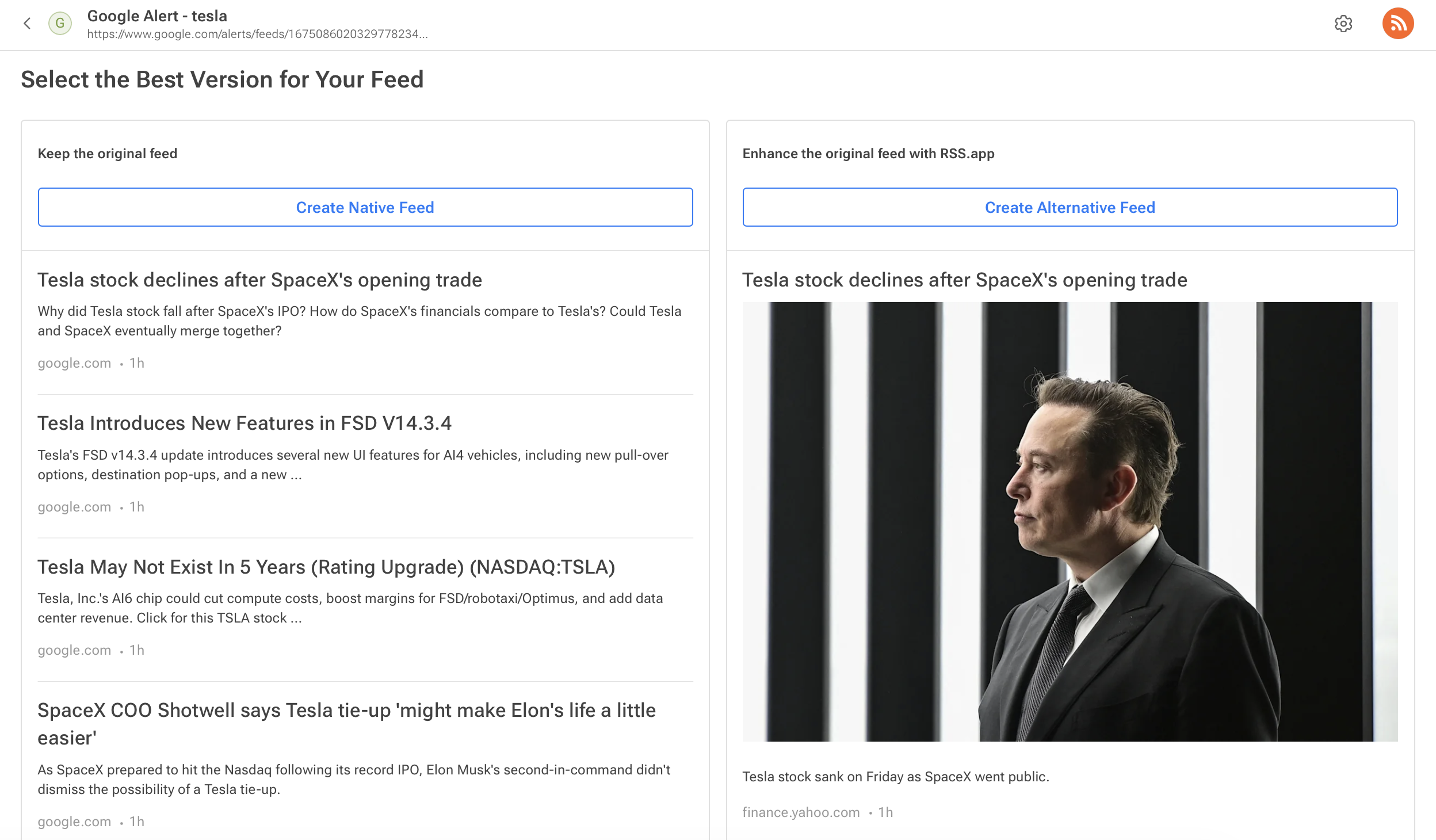
It's easier to scan. It updates continuously rather than on a digest schedule. And it's the foundation for everything that comes next.
Bring multiple alerts together with Bundles. If five separate alerts are generating five separate feeds, Bundles merge them into one stream. One place to look, instead of five email threads to manage.
Remove noise with Filters. Not everything in that stream deserves attention. Filters let you remove specific publishers, exclude topics you don't care about, and surface only what's relevant. Advanced Rules go further. You can change how content is structured before it reaches you: add custom text, replace links, and even use Regex rules.
Understand the feed faster with AI Brief. Instead of opening articles one by one, AI Brief reads the latest stories in the feed and writes a short summary. A few sentences that capture what's happening across your sources. Enough to know what matters without tab-switching.
Send updates where work happens. Once the feed is clean and summarized, it can go wherever decisions get made. Send updates to Slack or Discord so a team sees them immediately. Connect to Zapier, Make, or n8n to trigger automations. Embed a live widget on an internal dashboard so updates surface in context, not buried in email.
Is this replacing Google Alerts or extending it?
No. It is extending it.
Google Alerts still does the discovery work. The keyword matching, web crawling, and indexing still happen through Google.
RSS.app takes over after Google finds something.
Instead of ending with a batched email, each result moves into a structured feed. From there, it can be filtered, summarized, bundled, embedded, automated, or sent to the tools your team already uses.
Same starting point. Much better workflow.
Who actually needs this?
Anyone doing real monitoring, not just staying loosely aware.
If you're tracking a competitor's press coverage, a regulatory topic that affects your industry, a brand mention across publications, or market signals that require a response, the gap between "Google sent me an email" and "I saw this immediately, understood it in context, and shared it with my team" is significant.
The setup takes a few minutes. What it replaces is hours of inbox management and tab-switching every week.
How to get started
Start with one alert. Open it, switch delivery to RSS, copy the URL, and paste it into RSS.app.
Then look at the results. Add a filter if the feed is noisy. Turn on AI Brief if you want quick summaries. Add more alerts to a Bundle when the first one is working well.
Google Alerts already does the hard part: finding new mentions across the web.
RSS.app makes those mentions easier to manage, understand, and act on. Instead of stopping in your inbox, your monitoring workflow can end where it is actually useful: Slack, summaries, dashboards, automations, or anywhere else your team works.
Prefer to see it in action?
Everything in this article (converting Google Alerts to RSS, combining multiple feeds, filtering noise, generating AI summaries, and sending updates to Slack or Telegram) is easier to understand when you see it happen.
Watch the full tutorial below to see the workflow step by step.
Want to try RSS feeds?
Create your first feed in minutes. Free to start, no credit card required.
Share this article


Ready to get started?
Create your first RSS feed in minutes. No coding required.