How to Build a Local News Hub That Updates Itself
Most local news websites die the same way: someone gets excited, publishes for two weeks, then life gets in the way. No new posts, visitors, or reason to come back.
The fix isn't more discipline. It's removing the manual step entirely.
This walkthrough covers how to build a local news website that pulls from newspapers, Facebook pages, community sites, and Google News automatically with RSS.app. We'll be using Austin, Texas as the example, but swap in any city and the same steps apply.
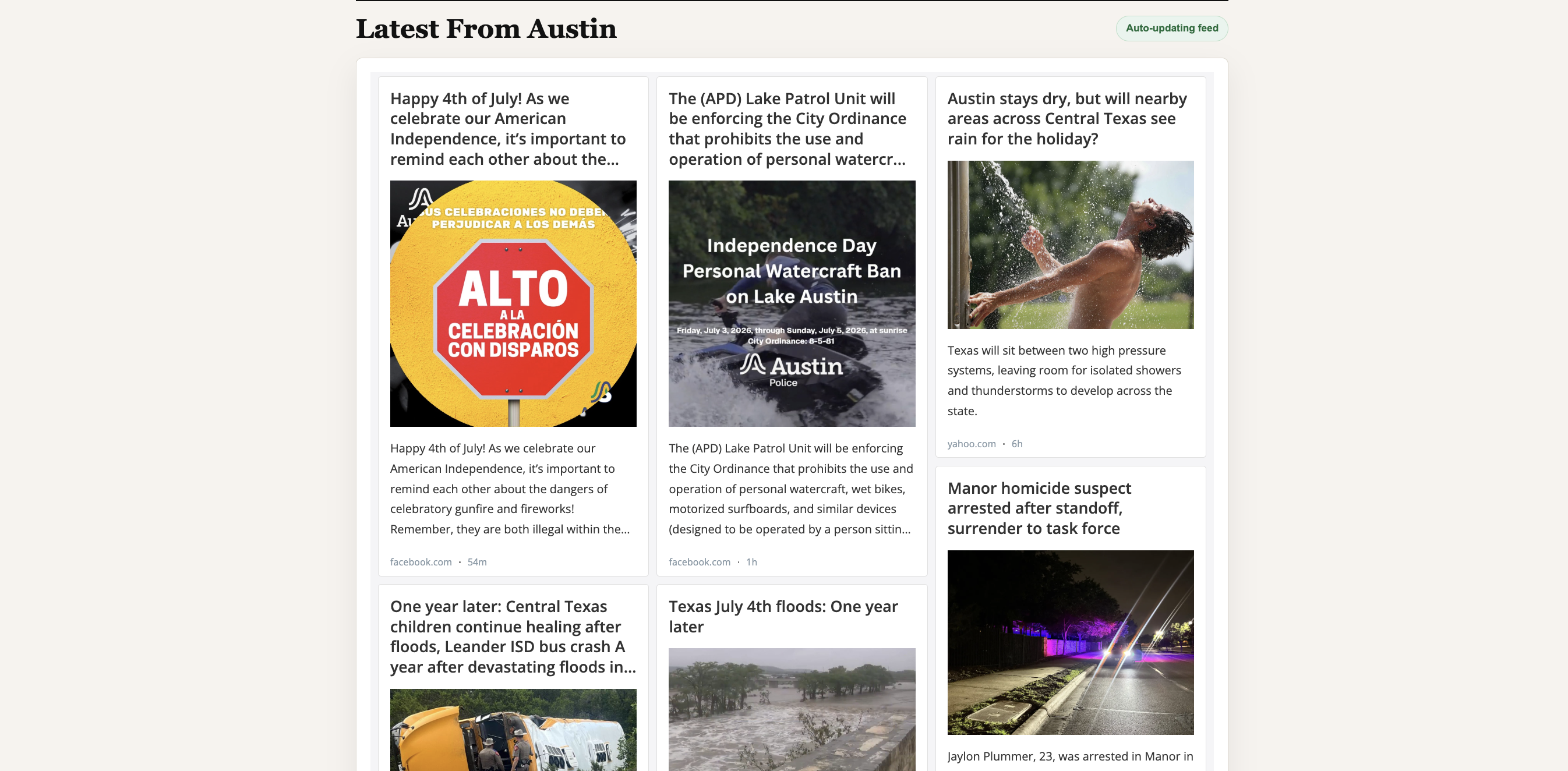
Why Use Multiple Sources Instead of One?
A single source is a liability. If one newspaper slows down or a Facebook page goes quiet, the whole site goes quiet with it.
A local news site built on multiple sources (official city pages, community blogs, regional newspapers, Google News results) doesn't have that failure point. When one source is slow, the others keep the feed moving. Readers get a mix of major stories, official updates, and community-level news in one place, without anyone touching the keyboard.
That's the model this tutorial builds: several sources, combined into one feed, displayed on autopilot.
How It Works
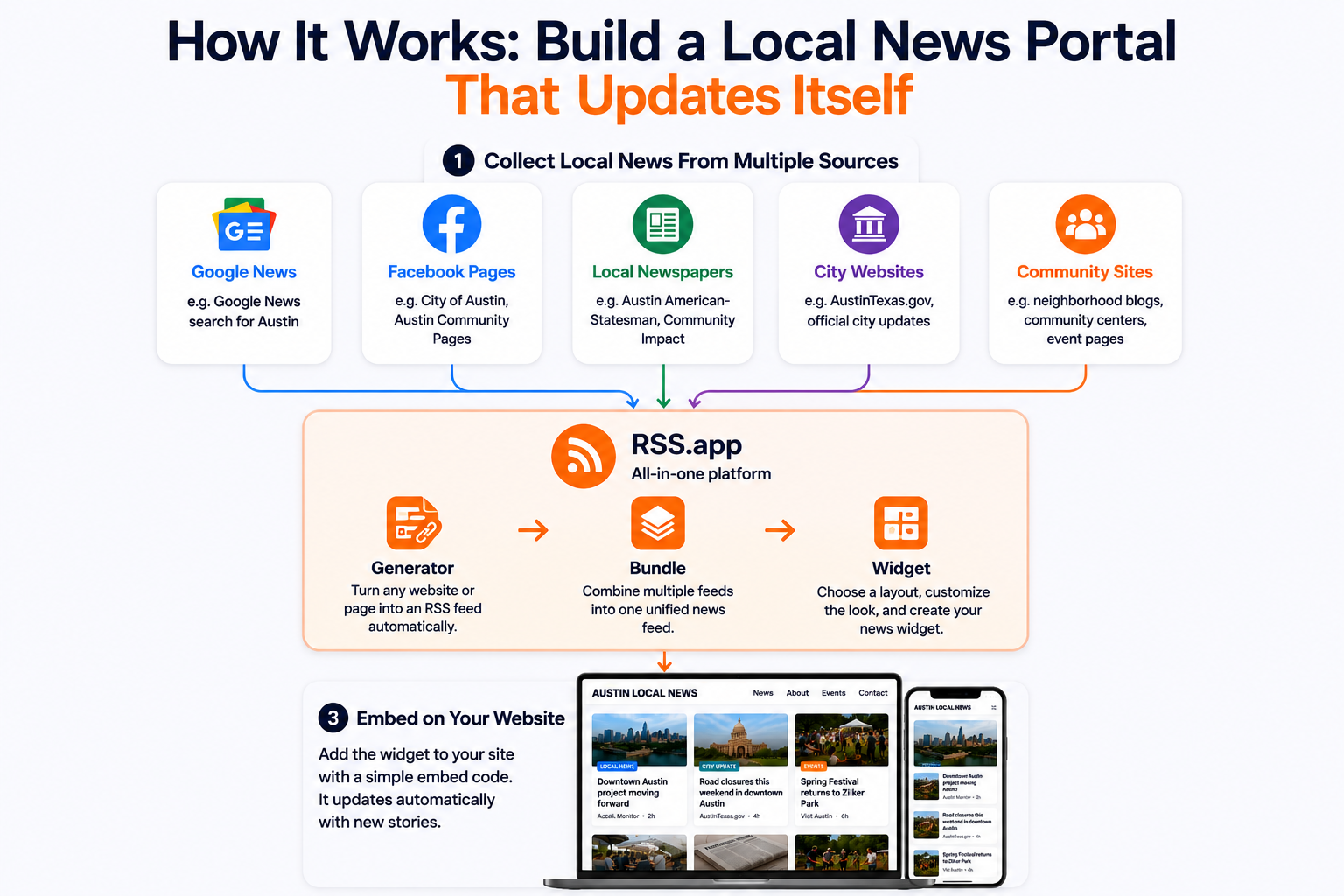
Prefer to watch instead? This video walks through the entire process, from collecting local news sources to embedding a live widget on your website.
Step 1: Find the Best Local News Sources
Start broad, then get specific. For Austin, that means:
- A Google News search filtered to Austin
- Official city Facebook pages
- Local newspapers
- Community and neighborhood websites
The source mix matters more than the source count. Five sources covering the same beat produce a repetitive feed. Five sources covering different angles like breaking news, city government, community events, and neighborhood updates produce something worth visiting.
This step isn't Austin-specific. Any city with a newspaper, a city Facebook page, and a couple of community sites has enough raw material to work with.
Step 2: Turn Each Source Into an RSS Feed
Copy the URL of a source and paste it into RSS.app's RSS Generator. The tool reads the page and outputs a structured feed that updates automatically as the source publishes new content.
Repeat this for every source. A Facebook page and a newspaper homepage look nothing alike, but the process is identical: paste the URL, generate the feed, save it. No manual monitoring required after setup. RSS.app keeps collecting new articles in the background according to your plan's refresh rate.
Step 3: Combine Multiple RSS Feeds Into One
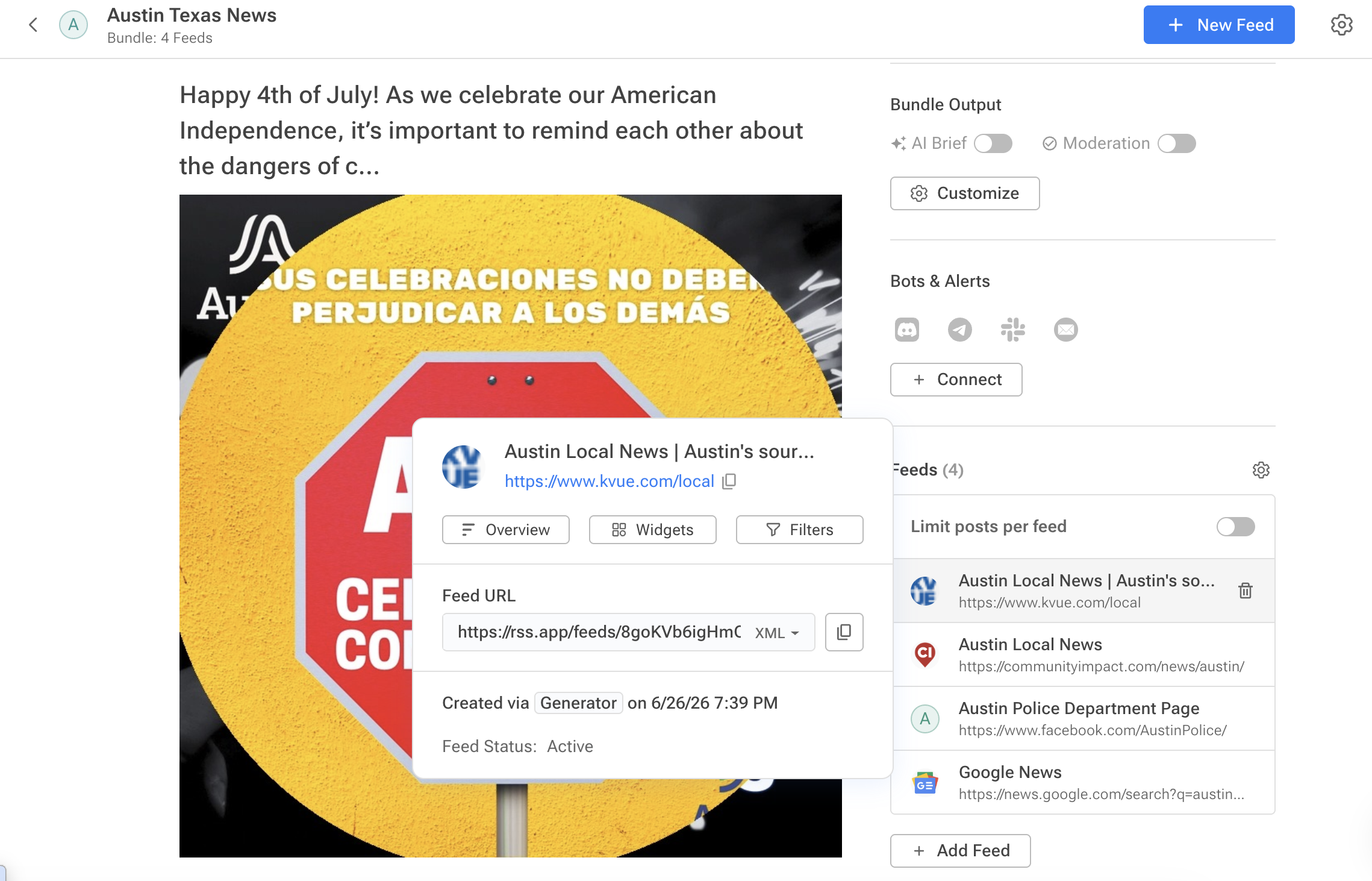
Five or six separate feeds are unmanageable on their own. Bundles solve that by merging every feed into a single stream.
Create a Bundle, add each feed from Step 2, and every new article from every source now lands in one place. Find another local source next month? Add it to the same Bundle. Nothing else about the setup changes.
This is what makes the site scalable. Coverage grows by adding a feed to an existing Bundle, not by rebuilding anything.
Step 4: Filter Duplicate and Irrelevant Stories
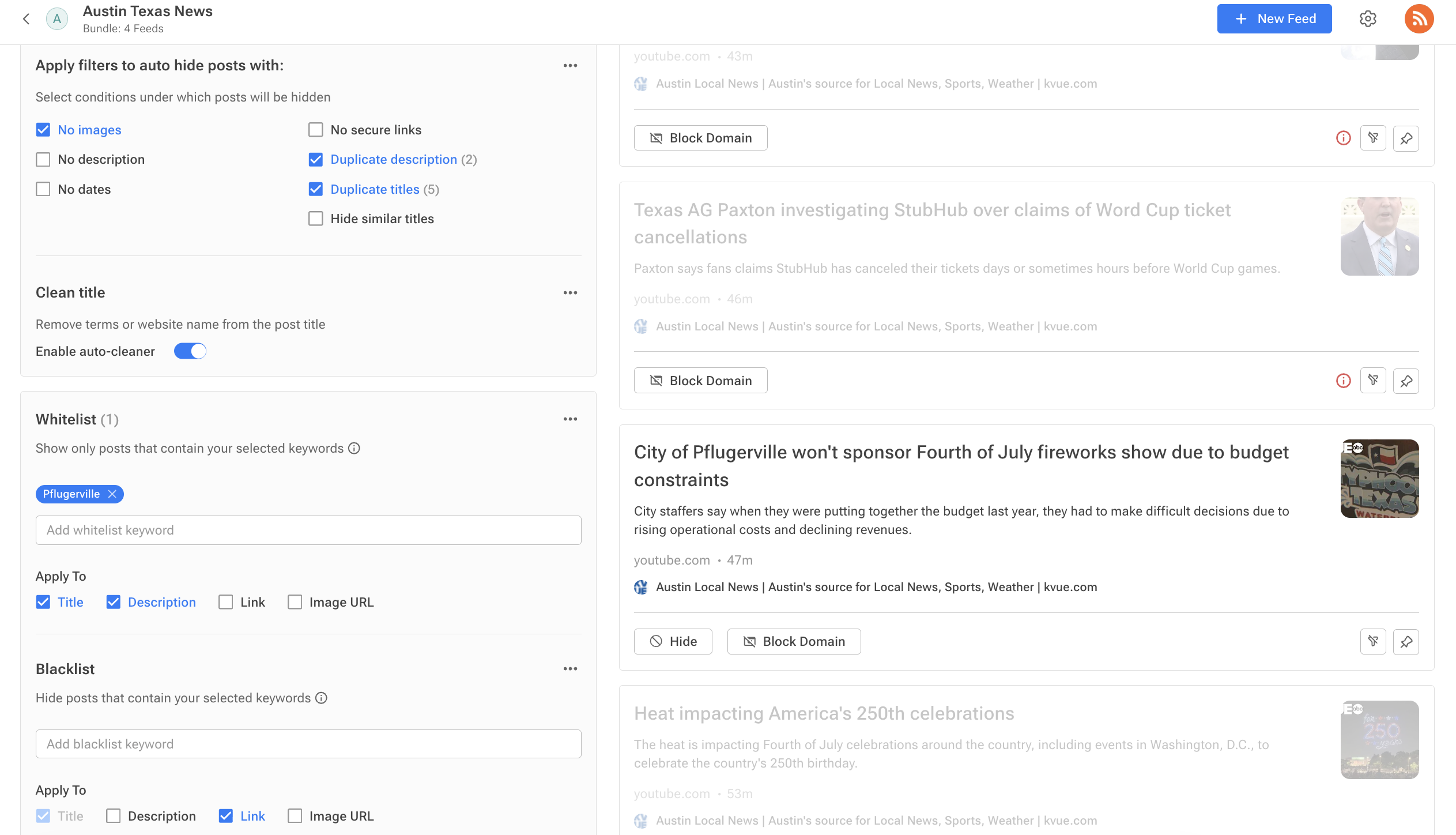
Raw aggregation without filtering gets messy fast: duplicate stories, irrelevant topics, low-quality posts with no images. Filters clean that up before anything reaches the site:
- Remove duplicates when multiple outlets cover the same story
- Drop posts without images to keep widgets visually consistent
- Whitelist specific neighborhoods or counties to narrow focus
- Blacklist topics like sports or entertainment that don't fit the audience
A handful of filters, set once, keep the feed relevant even as new sources get added later.
Step 5: Create a Local News Widget
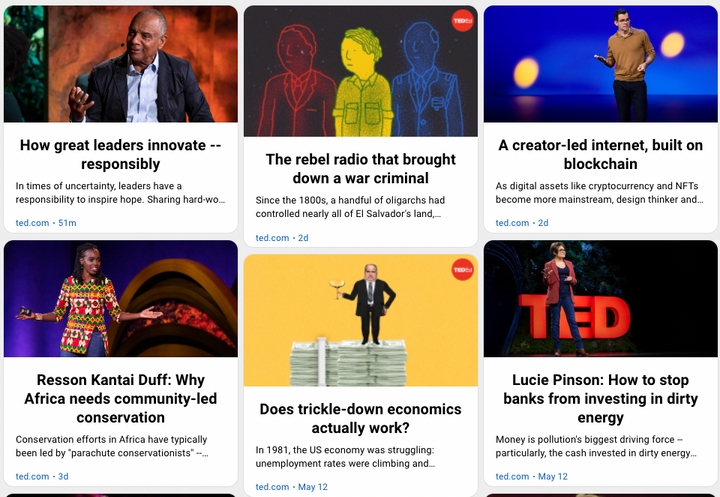
RSS.app offers seven widget layouts, each suited to a different presentation style:
| Layout | Best For |
|---|---|
| News Wall | Grid-style homepage or general news section |
| List | Scanning large volumes of headlines quickly |
| Carousel | Highlighting a small set of featured stories |
| Imageboard | Visual-first content — travel, events, lifestyle |
| Ticker | Scrolling breaking news or announcements |
| Magazine | Editorial look with large featured stories |
| Feed | Single-post, blog-style presentation |
For a local news site, News Wall is the default choice. It shows several stories from different sources at once, which is exactly what a homepage needs to signal active, varied coverage.
Customization options like card style, fonts, colors, spacing, are all available with a live preview, so the widget matches the site's design before anything goes live.
Step 6: Embed the Local News Widget on Your Website
Two embed options are available: JavaScript and iframe. JavaScript is the better choice when the site builder supports it; iframe works as a fallback anywhere.
On Wix, that means: Add Elements → Embed → paste the widget code → apply. Other builders follow the same pattern, sometimes labeled "Custom HTML" instead of "Embed." The widget is responsive by default, so it adapts across desktop, tablet, and mobile without extra configuration.
What Happens After Setup
Nothing, and that's the point. Once the Bundle and widget are live, new articles from any connected source flow into the feed and appear on the site automatically. No manual publishing, no monitoring five different pages, no dead site after week two.
The same setup works for a city guide, a neighborhood association page, a regional hub, or any site that depends on staying current without a full-time editor behind it.
Try it with RSS.app. Generate a feed from any local source in under a minute.
Want to try RSS feeds?
Create your first feed in minutes. Free to start, no credit card required.
Share this article


Ready to get started?
Create your first RSS feed in minutes. No coding required.